Downloads - App
“Downloads” is a powerful download tool in the NAS system that supports downloading various types of resources, including HTTP, FTP, and BT/PT. It offers an intuitive user interface that allows you to easily view download tasks and their progress, making it suitable for handling all kinds of download tasks and providing a more convenient download experience. Whether you’re downloading personal files or managing shared resources, the Download Center handles it all with ease.
This interface is used to manage all download and seeding tasks. It supports viewing tasks by category, monitoring their status, and performing quick actions. The operation is simple and efficient. Specific feature descriptions are as follows:
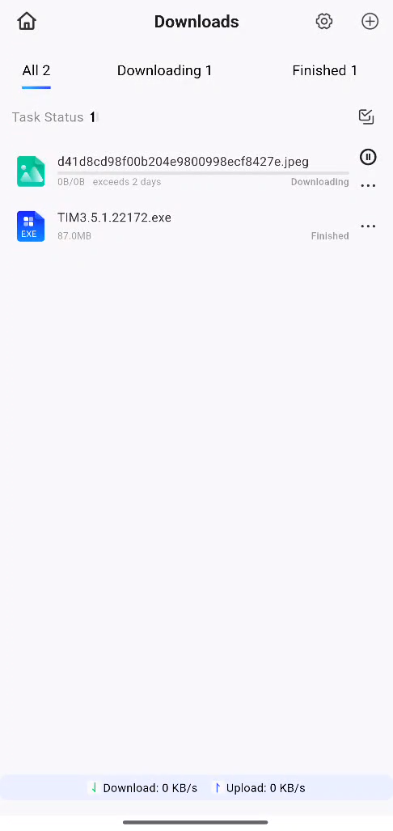
Core Functional Modules
Top Navigation and Action Area
-
Download Settings: Click the "gear" icon in the upper-right corner to open the download settings page, where you can configure parameters such as the save location, download speed limit, and Tracker.
-
Create New Task: Click the "+" icon in the upper-right corner to manually add a magnet link, torrent file, or download link and create a new download task.
-
Task Category Tags:
-
**All: **Displays all download and seeding-related tasks.
-
**Downloading: **Displays only tasks currently being downloaded; you can view real-time progress and speed.
-
**Completed: **Displays only tasks that have been fully downloaded; supports subsequent seeding or file management operations.
-
**Seeding: **Displays only tasks currently being seeded; you can monitor upload speed and seeding progress.
-
Task Management Area
-
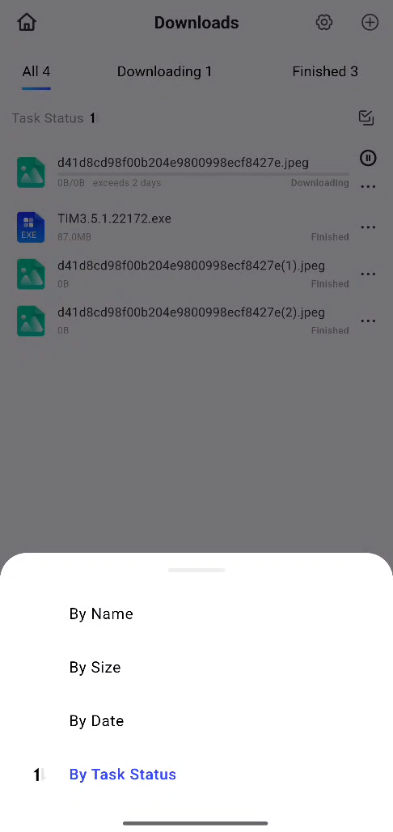
Task Status Filter:
-
Click the filter icon next to "Task Status" to open the sort/filter pop-up window, which allows you to sort the task list by name, size, date, or task status.
-
After selecting the desired sort criteria, the task list will automatically be rearranged, making it easier to quickly locate the task you're looking for.
-
-
Task Card Information:
-
Displays the task name, file type icon (e.g., BT icon), file size, and current progress.
-
Displays the task status (to be added).
-
Tap the "⋯" icon on the right to copy the link, pin the task, or delete it.
-
-
Speed Monitor Bar: Displays the current download and upload speeds in real time at the bottom of the screen, allowing you to easily see how much bandwidth is being used.
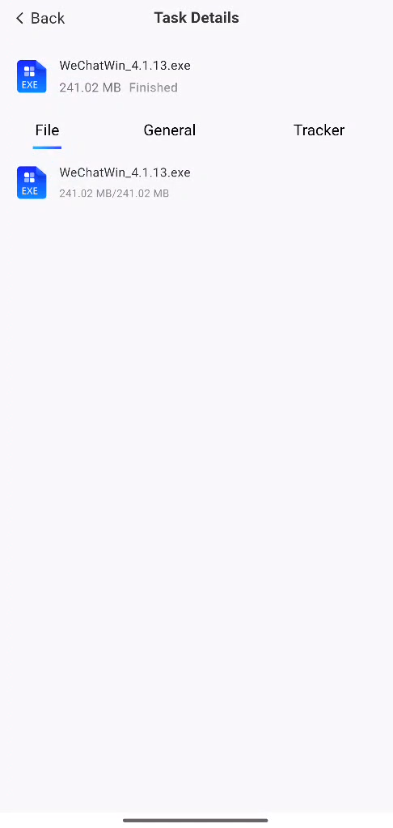
Task Details Page
-
**Return to the Download Center: **Click the "Back" button in the upper-left corner to return to the Download Center's main screen.
-
Basic Task Information: The task name and total file size are displayed at the top for quick identification.
-
Tab Categories: Includes four tabs—"Files," "General," "Tracker," and "Peer"—for viewing task details by category:
-
**Files: **Displays a list of files included in the task. You can view the size, download progress, and status of each file. Click the “⋯” to the right of a file to manage it individually.
-
**General: **Displays general information about the task (such as the download path and creation time).
-
**Tracker: **Displays information about the Tracker server associated with the current task, which can be used to troubleshoot download connection issues.
-
Peer: Displays information about the currently connected peer nodes, used to monitor download and upload connection statuses.
-
Download Settings:
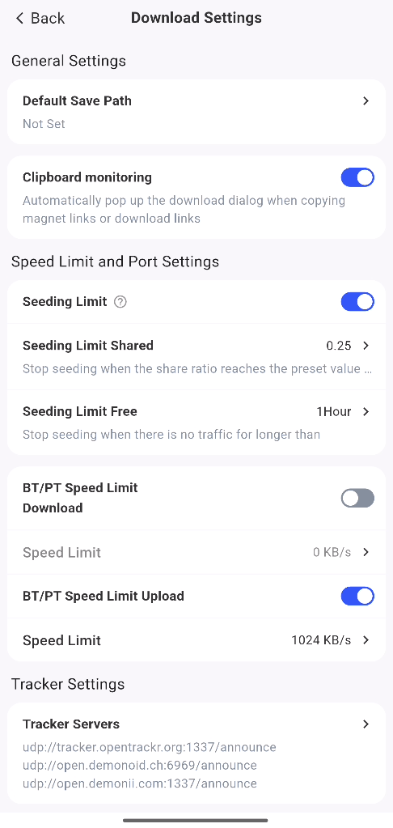
一、General Settings
-
Default Save Location: Sets the default storage location for downloaded files. If no location is currently set, click to open the path selection page; after selecting a new path, click “OK” to apply the change.
-
Monitor Clipboard: Controlled by a toggle switch. When enabled, a download dialog box will automatically pop up when you copy a magnet link or download link, making it easy to create download tasks.
二、Speed Limits and Port Settings
-
**Seeding Restrictions: **When enabled, this feature limits file-sharing seeding activity to prevent excessive bandwidth usage.
-
**Sharing Rate Limit: **Set a threshold for the file sharing rate; seeding will automatically stop once this threshold is reached. The current default value is
0.0。 -
**Idle Duration Limit: **Set a threshold for the idle duration during seeding; seeding will automatically stop once this duration is exceeded. The current setting is “No Limit.”
-
-
**BT/PT Download Speed Limit: **Use the toggle to control whether to limit BT/PT download speeds. When turned off, there is no speed limit; when turned on, you can set a specific speed limit(the current default is
0,meaning no speed limit)。 -
**BT/PT Upload Speed Limit: **Use the toggle to control whether to limit BT/PT upload speeds. When enabled, you can set a specific speed limit(currently set to
1048576KB/s)to prevent upload bandwidth from being fully utilized and affecting other services.
三、Tracker Settings
- **Tracker Server: **The address of the tracker server used to configure BT/PT downloads. The current default address is
udp://tracker.opentrackr.org:1337/announce; After clicking to enter, you can add, delete, or modify Tracker server addresses to optimize download connection efficiency.
Create a Download Task
Click the "+" icon in the upper-right corner, and in the pop-up window, select one of the following options to create a task:
-
**Add download links: **Enter magnet links, HTTP links, or hash values (one link per line), then confirm to create a download task.
-
**Select a NAS torrent file: **Select a
.torrentfile from your NAS device to automatically create a download task. -
**Select a NAS torrent file: **Select a
.torrentfile from your NAS device to automatically create a download task.
Please note:
● Supported download link types include http, ftp, and magnet. When adding multiple download links, please enter them on separate lines to ensure they are recognized correctly.
● If you need to change the save location for the current download task, click “Save” on the Add Task page, select a new save location, and then click “OK.”
Manage Seeding Tasks
On the "Download Center" > "Downloads" page, click a downloaded task to view its details. Task details include the task name, save path, download link, start and completion times, downloader, speed, and more. Within the details, you can edit the task name and copy the download link to share with others.
When a BT/PT download task is complete, the system will automatically start seeding.
In addition, you can search for, filter, and select multiple download tasks at once on the Download Center list page.
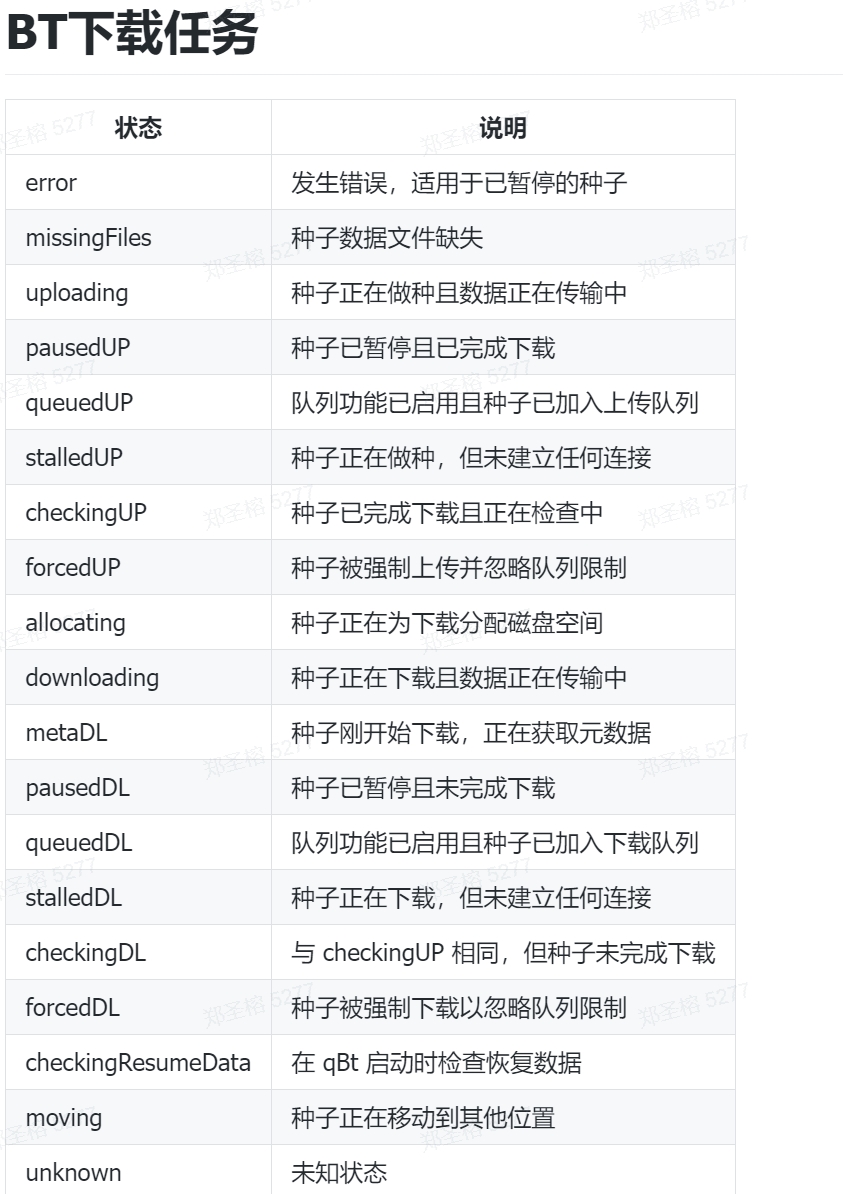
名词解释
备注:种子很多状态,考虑是否罗列,具体需要找郑瀚核对: